How to Set Up a Home Office (Tech Essentials)
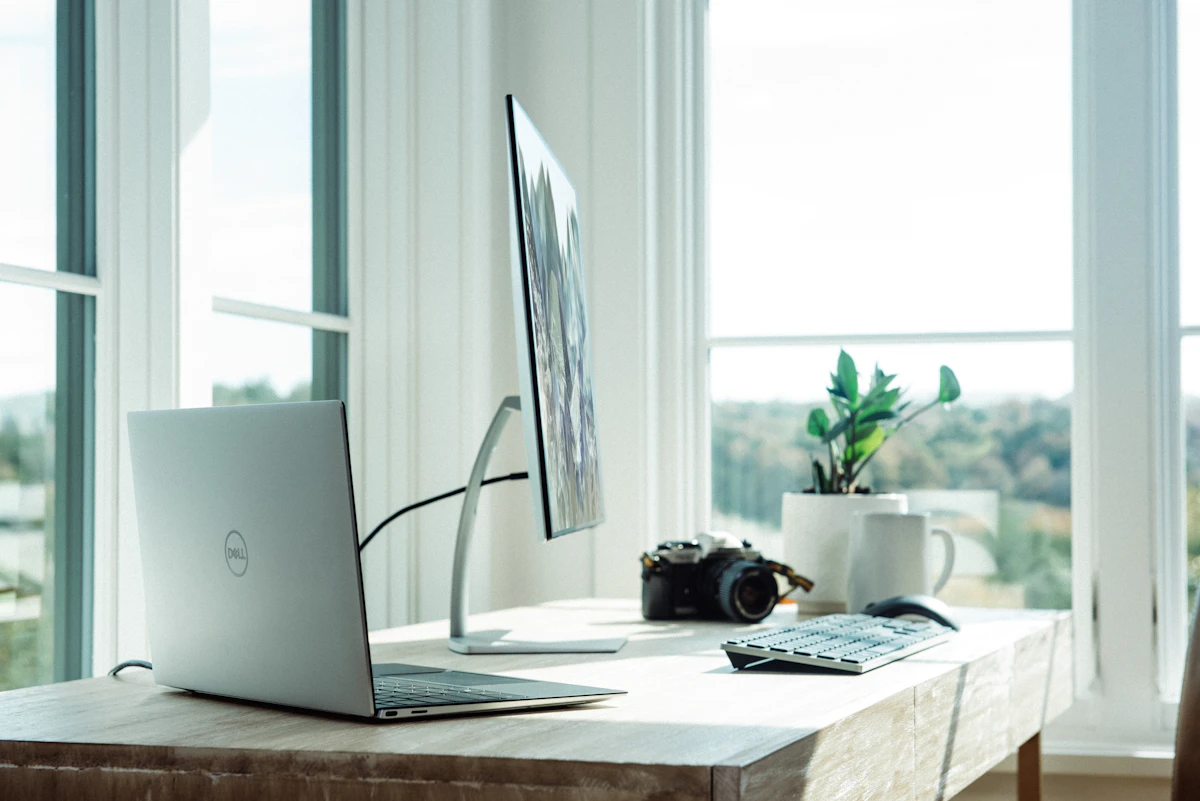
Your Home Office.
Built Right.
Whether you are working from home full-time or just need a better setup for late-night projects, getting the right tech makes the biggest difference. Here is everything you actually need — explained plainly, for every budget.
A bad home office setup is not just uncomfortable — it actively drains your productivity and energy. A screen that strains your eyes, a chair that hurts your back after two hours, a webcam that makes you look like you are video-calling from a potato: these things affect how you work, how you feel, and how others perceive you professionally.
The good news is you do not need to spend a fortune. The biggest improvements in any home office come from a handful of targeted upgrades — and this guide will tell you exactly what those are, what to look for, and which products are worth the money at every budget level.
This is an educational guide. Every recommendation is based on genuine usefulness, not sponsorship. We cover what to look for, why it matters, and real product picks from budget to premium — with links to check current pricing.
NUMBERS Why Your Setup Matters
FOUNDATION The Desk & Chair
Before you buy a single piece of tech, get your physical setup right. An ergonomic chair and a properly sized desk are more important than any gadget. Back pain and poor posture are silent productivity killers — they accumulate over months and become serious health issues.
For the desk, aim for at least 120cm wide and 60cm deep to fit a monitor, keyboard, and some clear space. Sit-stand (height-adjustable) desks are the gold standard — alternating between sitting and standing reduces fatigue and has documented health benefits. They used to be expensive; good options now start around $250–$350.
For the chair, look for adjustable lumbar support, adjustable armrests, and seat depth adjustment. The chair does not need to be a $1,500 Herman Miller to be good — the market has many solid options between $150–$400 that check all the boxes for most people.
What to Look for in a Home Office Chair
- +Lumbar support: Either adjustable or a well-shaped backrest that supports the lower curve of your spine
- +Seat height: Should allow your feet flat on the floor with thighs parallel — typically 41–53cm range
- +Armrests: Adjustable height; elbows at 90 degrees so shoulders stay relaxed
- +Seat depth: Adjustable so you are not putting pressure on the backs of your knees
- +Breathable mesh or fabric: Avoids the sticky, hot feeling of all-foam seats during long sessions
- BudgetHbada Ergonomic Office Chair (~$150) — solid lumbar, mesh back, great entry point
- MidAutonomous ErgoChair Pro (~$350) — full adjustability, excellent lumbar, long-session comfort
- PremiumHerman Miller Aeron (~$1,400) — industry gold standard, 12-year warranty, worth it if you sit 8+ hrs/day
DISPLAY The Monitor
If you are working from a laptop screen alone, adding an external monitor is the single highest-impact upgrade you can make. Even a modest 24-inch 1080p monitor creates dramatically more usable screen space than a 15-inch laptop display.
Resolution: For a 24-inch monitor, 1080p (Full HD) is acceptable. At 27 inches or above, go for 1440p (QHD) — text and images are significantly sharper. 4K monitors are excellent for creative work but require more GPU power and are unnecessary for most office tasks.
Panel type: IPS panels offer the best colour accuracy and viewing angles — ideal for most home office users. VA panels have better contrast for darker rooms. TN panels are the cheapest but have poor colour and viewing angles — avoid for all-day work use.
Eye care matters: Look for monitors with flicker-free backlights and low blue-light modes. These are not marketing gimmicks — flickering backlights and excessive blue light cause measurable eye fatigue over long sessions.
Monitor Specs Decoded
- Resolution: 1080p for 24" or below. 1440p for 27". 4K for 32"+ or creative/design work.
- Refresh rate: 60Hz is fine for office work. 75Hz+ is smoother. 144Hz+ is for gaming, not needed for productivity.
- Response time: Irrelevant for office work. Matters only for gaming.
- USB-C with Power Delivery: Excellent feature — one cable charges your laptop AND carries video signal.
- Adjustable stand: Height, tilt, and pivot adjustment prevents neck strain. Do not buy a monitor you cannot raise to eye level.
- BudgetAcer SB220Q 21.5" 1080p IPS (~$100) — slim, IPS, solid colours for the price
- MidLG 27" 27MK600M 1440p IPS (~$220) — sharp, well-calibrated, adjustable stand
- PremiumDell UltraSharp U2723DE 27" 4K USB-C (~$550) — exceptional panel, single-cable docking, professional grade
COMPUTE Laptop or Desktop
For most home office workers, a modern laptop paired with an external monitor is the ideal setup. You get portability when you need it and a full desktop-like experience when docked at your desk. The era of the desktop PC as the default choice for home workers has largely passed — unless you do heavy video editing, 3D rendering, or gaming.
For general office work (documents, email, video calls, light multitasking): any modern laptop with 8GB RAM and a recent processor handles this comfortably. The Apple MacBook Air with M-series chips delivers exceptional battery life and performance-per-watt that Windows laptops at the same price rarely match.
For creative or technical work: 16GB RAM minimum, dedicated GPU if doing video or 3D, and a fast SSD are the key specs to prioritise. A Windows machine gives more GPU options at lower prices; MacBooks offer better integration and battery life.
Minimum Specs for a Home Office Laptop in 2026
- +RAM: 16GB minimum. 8GB is passable but will feel limiting with multiple browser tabs + video calls
- +Storage: 256GB SSD minimum; 512GB is more comfortable for most users
- +Battery: Aim for 8+ hour real-world claims. Anything under 6 hours becomes a desk anchor
- +Ports: At least one USB-C/Thunderbolt for monitor connection, ideally more for peripherals
- +Display: For the laptop screen itself, IPS or OLED, minimum 1920x1200 — avoids an ugly mismatch with your external monitor
- BudgetAcer Aspire 5 (AMD Ryzen 5, 16GB, ~$500) — reliable, upgradeable, solid all-rounder
- MidApple MacBook Air M3 13" (~$1,099) — exceptional performance, 18hr battery, silent fanless design
- PremiumDell XPS 15 (Core Ultra 9, 32GB, OLED ~$1,800) — stunning display, powerful, compact for its screen size
INPUT Keyboard & Mouse
Most people use whatever keyboard and mouse came with their computer and never think about it. This is a mistake. If you type for hours each day, the feel, noise level, and ergonomics of your keyboard have a real impact on productivity and joint health over the long term.
For keyboards, the choice comes down to membrane (quiet, cheap, mushy feel), mechanical (tactile, louder, loved by typists), and low-profile mechanical (the best of both worlds for office environments). Wireless is strongly recommended for a clean desk — modern wireless keyboards have effectively zero latency compared to wired.
For mice, ergonomic design matters more than DPI specs for office work. A vertical mouse reduces wrist pronation and is worth considering if you use a mouse heavily. Bluetooth reduces cable clutter; many mice now have multi-device pairing so one mouse switches between laptop and desktop with a button click.
- Budget KBLogitech K380 Wireless (~$40) — compact, quiet, 3-device Bluetooth pairing
- Mid KBKeychron K3 Pro Low-Profile Mechanical (~$90) — satisfying tactile feel, thin, wireless
- Budget MouseLogitech M650 Wireless (~$35) — quiet clicks, comfortable shape, excellent battery life
- Premium MouseLogitech MX Master 3S (~$100) — best-in-class scroll wheel, multi-device, nearly silent
VIDEO CALLS Webcam & Microphone
If you are on video calls regularly, audio quality is more important than video quality. A person with average video and clear audio sounds more professional than someone with perfect video but muffled, echoey sound. Upgrade your microphone before your webcam.
For webcams, the built-in cameras on most laptops capture 720p at poor quality in anything other than ideal lighting. An external 1080p webcam (and especially one with autofocus and automatic light correction) immediately makes you look noticeably better. If you have a recent iPhone or Android phone, apps like Continuity Camera (Apple) or DroidCam let you use your phone as a high-quality webcam for free.
For microphones, a USB condenser microphone sits on your desk and picks up your voice clearly while rejecting background noise. This is a major upgrade from any laptop mic or headset mic at comparable price points.
Common Webcam and Mic Mistakes
- !Placing the camera below eye level — makes you look down on calls, which reads as dismissive. Mount at eye level or just above.
- !Backlighting from a window behind you — your face will be in silhouette. Face toward your light source.
- !Using a headset mic for important calls — the audio quality rarely justifies the look; a desktop USB mic is better.
- !Bare rooms echo significantly — a rug, bookshelves, or soft furnishings reduce reverb noticeably.
- WebcamLogitech C920s HD Pro (~$70) — the most-recommended 1080p webcam for home offices
- Webcam+Elgato Facecam Pro 4K (~$200) — cinema-quality capture, manual controls, for creators
- Budget MicBlue Snowball iCE USB (~$50) — a dramatic improvement over any built-in mic
- Mid MicBlue Yeti Nano USB (~$100) — cardioid pattern, studio-quality voice, plug-and-play
CONNECTIVITY Internet & Networking
For working from home, you need a reliable internet connection above all else. Dropped video calls, lagging uploads, and buffering are not just annoying — they directly undermine your professional image and efficiency. The connection should be treated as essential infrastructure, not an afterthought.
Wired is always better. If your desk is near your router, run an ethernet cable. A wired connection eliminates Wi-Fi interference, halves latency, and provides consistent speeds that Wi-Fi cannot always guarantee. A $10 ethernet cable is the highest-ROI network upgrade available.
For Wi-Fi, if you must use it, a Wi-Fi 6 (802.11ax) router dramatically improves performance in homes with multiple devices — smartphones, laptops, smart TVs, and tablets all competing for bandwidth simultaneously. Mesh Wi-Fi systems (like TP-Link Deco or Eero) eliminate dead zones in larger homes by using multiple nodes to blanket the space with consistent signal.
Internet Setup Checklist for Home Workers
- +Minimum 50 Mbps download / 20 Mbps upload for reliable HD video calls; 100 Mbps+ recommended if others in the home are online simultaneously
- +Ethernet cable from router to desk wherever physically possible — especially for video call-heavy roles
- +Wi-Fi 6 router if upgrading; supports more simultaneous devices efficiently
- +Mesh Wi-Fi if your home office is far from the main router or on a different floor
- +Consider a UPS (uninterruptible power supply) if power cuts are common in your area — keeps your router and PC online during brief outages
- RouterTP-Link Archer AX55 Wi-Fi 6 (~$80) — excellent range, handles 50+ devices, great for the price
- MeshAmazon Eero 6+ 3-Pack (~$170) — simple app-based setup, blankets large homes
- PremiumAsus ZenWiFi Pro ET12 Wi-Fi 6E (~$350) — tri-band, ultra-fast, for power users and large homes
ENVIRONMENT Lighting
Lighting in a home office serves two purposes: helping you see comfortably (task lighting), and making you look good on camera (key lighting). Both are often neglected.
For eye comfort, the general rule is that ambient light in the room should be roughly the same brightness as your screen. A dark room with a bright screen causes the most eye fatigue. Use a warm-toned desk lamp to illuminate your workspace without creating glare on your monitor.
For video calls, a ring light or an LED panel placed in front of and slightly above your face creates the clean, professional look used by broadcasters and content creators. It fills shadows, creates a natural catchlight in the eyes, and neutralises the yellow-green cast of most ceiling lights. This single piece of kit can make a bigger visual difference than a new webcam.
- Desk LampBenQ ScreenBar Halo (~$200) — monitor-mounted, no glare on screen, exceptional build quality
- Ring LightElgato Ring Light (~$200) — app-controlled, adjustable colour temperature, studio-quality
- Budget LightNeewer 10" Ring Light Kit (~$30) — surprisingly good for the price, tripod stand included
FINISHING TOUCHES Power & Cable Management
The final layer of a good home office setup is power management and cable organisation. A good USB-C hub or docking station lets you connect monitor, keyboard, mouse, webcam, and storage to your laptop via a single cable — transforming your desk setup and teardown from a multi-step process to one plug-in.
A powered USB hub with multiple USB-A ports, USB-C, HDMI, and ethernet is a game-changer for laptop users who work with peripherals. Look for models that also deliver enough power to charge your laptop passthrough.
Cable management trays, velcro ties, and cable clips are inexpensive and transform a messy desk into a clean workspace in under an hour. Adhesive cable clips run cables under the desk edge; a simple velcro strap bundles cables cleanly behind or beneath the surface.
Power & Cable Essentials
- +Surge-protected power strip — protects all your equipment from voltage spikes; a $20 investment that could save $2,000 of equipment
- +USB-C docking station — one cable to connect everything to your laptop; check it supports 90W+ passthrough charging
- +Under-desk cable tray — mounts beneath the desk and holds power strips and cable bundles out of sight
- +Velcro cable ties — reusable, gentle on cables, the simplest cable management tool available
- USB HubAnker 655 USB-C Hub 8-in-1 (~$50) — reliable, portable, HDMI + ethernet + USB-A + USB-C + SD
- DockCalDigit TS4 Thunderbolt 4 Dock (~$250) — 18 ports, 98W charging, the ultimate MacBook / Windows dock
- Cable MgmtIKEA Signum Under-Desk Cable Tray (~$15) — unbeatable value, hides all under-desk cables instantly
TABLE Full Budget Comparison
| Category | Budget (~$) | Mid-Range (~$) | Premium (~$) | Priority |
|---|---|---|---|---|
| Chair | $150 — Hbada | $350 — ErgoChair Pro | $1,400 — Herman Miller | Critical |
| Monitor | $100 — Acer 22" | $220 — LG 27" 1440p | $550 — Dell UltraSharp | Critical |
| Laptop | $500 — Acer Aspire 5 | $1,099 — MacBook Air M3 | $1,800 — Dell XPS 15 | Critical |
| Keyboard | $40 — Logitech K380 | $90 — Keychron K3 Pro | $150+ — Custom Mech | High |
| Mouse | $35 — Logitech M650 | $100 — MX Master 3S | $130 — MX Master 3S + Ergo | High |
| Webcam | $70 — Logitech C920s | $150 — Logitech Brio | $200 — Elgato Facecam Pro | Medium |
| Microphone | $50 — Blue Snowball iCE | $100 — Blue Yeti Nano | $230 — Rode NT-USB+ | High |
| Router | $80 — TP-Link AX55 | $170 — Eero 6+ Mesh | $350 — Asus ZenWiFi | Critical |
| Lighting | $30 — Neewer Ring Light | $200 — Elgato Ring Light | $200 — BenQ ScreenBar Halo | Medium |
| USB Hub / Dock | $50 — Anker 655 | $130 — Anker PowerExpand | $250 — CalDigit TS4 | Medium |
GLOSSARY Key Terms Explained
FAQ Common Home Office Questions
What is the minimum budget to build a functional home office?
Should I get a standing desk?
One monitor or two?
Is the MacBook Air genuinely better than equivalent Windows laptops?
Do I need to buy all of this at once?
The Bottom Line
A great home office is not about buying everything at once or spending the maximum on every category. It is about knowing what actually affects your health, productivity, and professional image — and investing in those things first. A proper chair and a large monitor will change your daily experience more than any software or smart gadget. Fast, reliable internet will save you from a dozen embarrassing situations this year. Good lighting and a clear microphone will change how colleagues and clients perceive you on every call. Start with the foundation. Upgrade from there. Your home office is where you do your best work — it deserves to be set up right.
2026 ElectroBuzz · electrobuzzi.blogspot.com
How to Set Up a Home Office (Tech Essentials) — Last updated 2026 — Contains affiliate links | Educational article


